The short answer
Five settings stop most first person motion sickness: raise the field of view, usually to somewhere between 90 and 105, turn motion blur off, turn depth of field off, disable head bob, and turn camera shake down or off. A narrow FOV is usually the biggest offender, because it makes every turn sweep the world across the screen faster than your eyes expect. A steady frame rate helps more than a high one. And if a game hides these options, accessibility menus, config files and mods often expose them anyway.
A friend swears by a game, you give it twenty minutes, and the familiar wrongness arrives: warm forehead, cold sweat, a stomach that wants the session over. It feels like a personal failing. Most of the time it is a defaults problem.
Developers tune default settings for how a game looks in a trailer, not for how it feels in your inner ear. The fixes are the same handful of toggles in almost every first person game, they take about five minutes, and you only have to find them once. Here is the checklist, and why each setting matters.
Queasy mid-game? Drug-free, no drowsiness, about 90 seconds on the headphones you already game with.Starts in your browser · works with any headphones
Calm game nausea. Get your personalized Dizzout plan. Paid subscription for full access.

On your phone? Scan to start there.
The five settings to change before anything else
Open the settings menu before the tutorial ends. In almost every first person game, these five do most of the work:
- Field of view: raise it. Start around 90 to 100 on a desktop monitor, higher if the game allows it and the stretched edges don't bother you.
- Motion blur: off. It smears the whole screen at exactly the moment your eyes need something sharp to hold onto.
- Depth of field: off. Cinematic in screenshots, a smeared mess in motion.
- Head bob: off, or the lowest value the game allows. Your inner ear feels no bobbing, so the rocking camera is pure mismatch.
- Camera shake: off or minimal. Explosions and landings can announce themselves without moving your eyes for you.
If the menu also offers weapon sway, sprint FOV effects or aim-zoom animations, calm those down too. They are smaller versions of the same problem.
Do
- Raise FOV to 90 or higher, then adjust to taste
- Turn motion blur and depth of field off
- Turn head bob and camera shake off or to minimum
- Hold a steady frame rate, even at lower settings
- Sit a little further from the screen, light on
Don't
- Play at a console default FOV on a desk monitor
- Push through long sessions to toughen up
- Game on a bright screen in a pitch-dark room
- Wait until nausea peaks before stopping
Practical settings advice, not measured effects. Which changes help most is personal.
Higher or lower FOV for motion sickness? Raise it
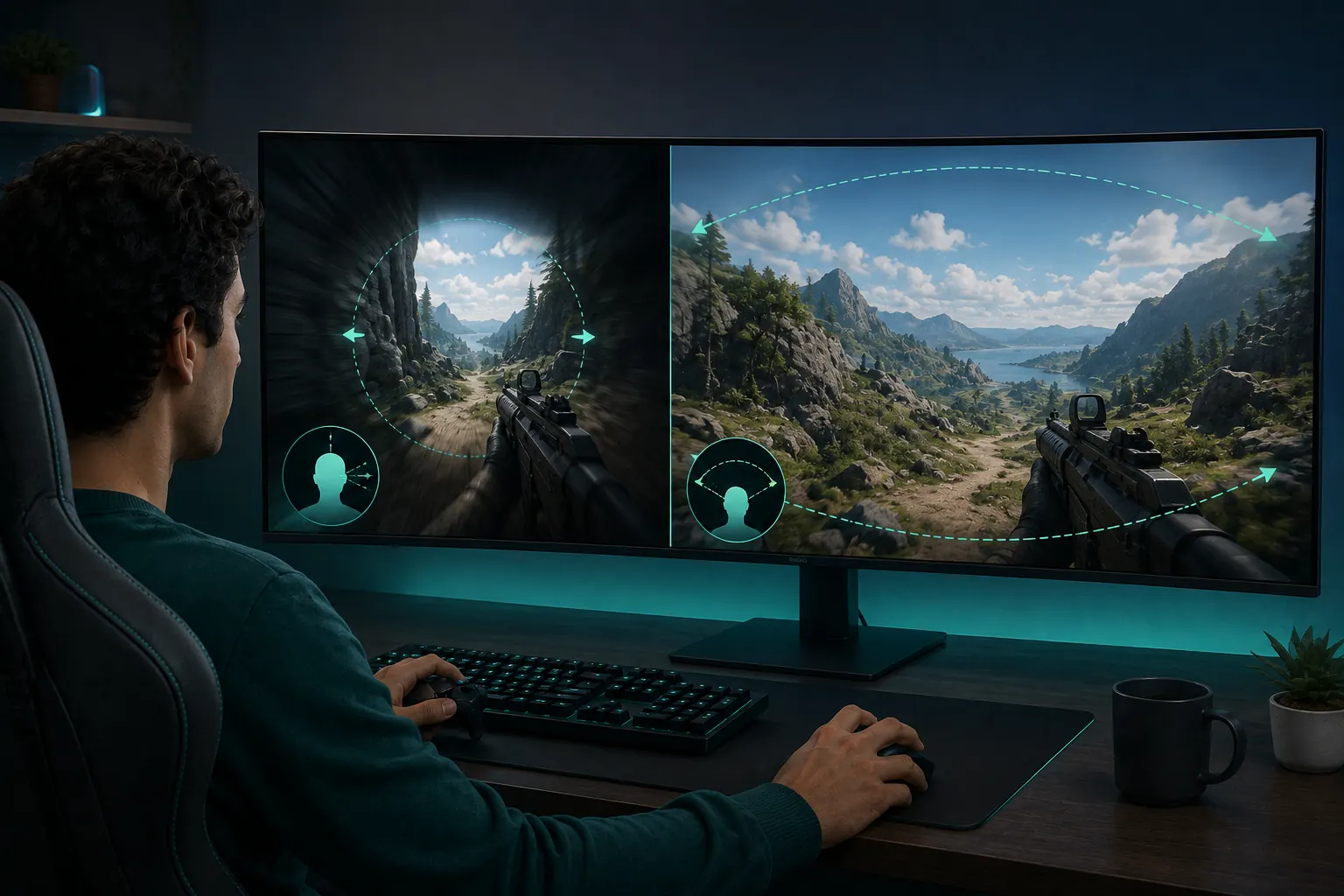
Higher, on a flat screen: start around 90 to 100 on a desktop monitor and go up from there if the stretched edges don't bother you. FOV is how many degrees of the game world fit on your screen. Many games, especially console ports, default to a narrow value chosen for a living room, where you sit far from the TV. Bring that same narrow slice to a desk, close to a monitor, and the geometry breaks: the screen now fills the middle of your vision, and the game funnels magnified movement straight into it.
A narrow FOV magnifies motion. Walls slide past faster, turns whip the scene across the screen, and ordinary walking looks like sprinting. Your eyes report violent movement while your inner ear reports a chair. That conflict between the two reports is the standard explanation for motion sickness, and a screen can trigger it with no real motion at all, the same sensory mismatch behind screen sickness. Raising the FOV calms the flow: the world moves at a rate your eyes read as normal.
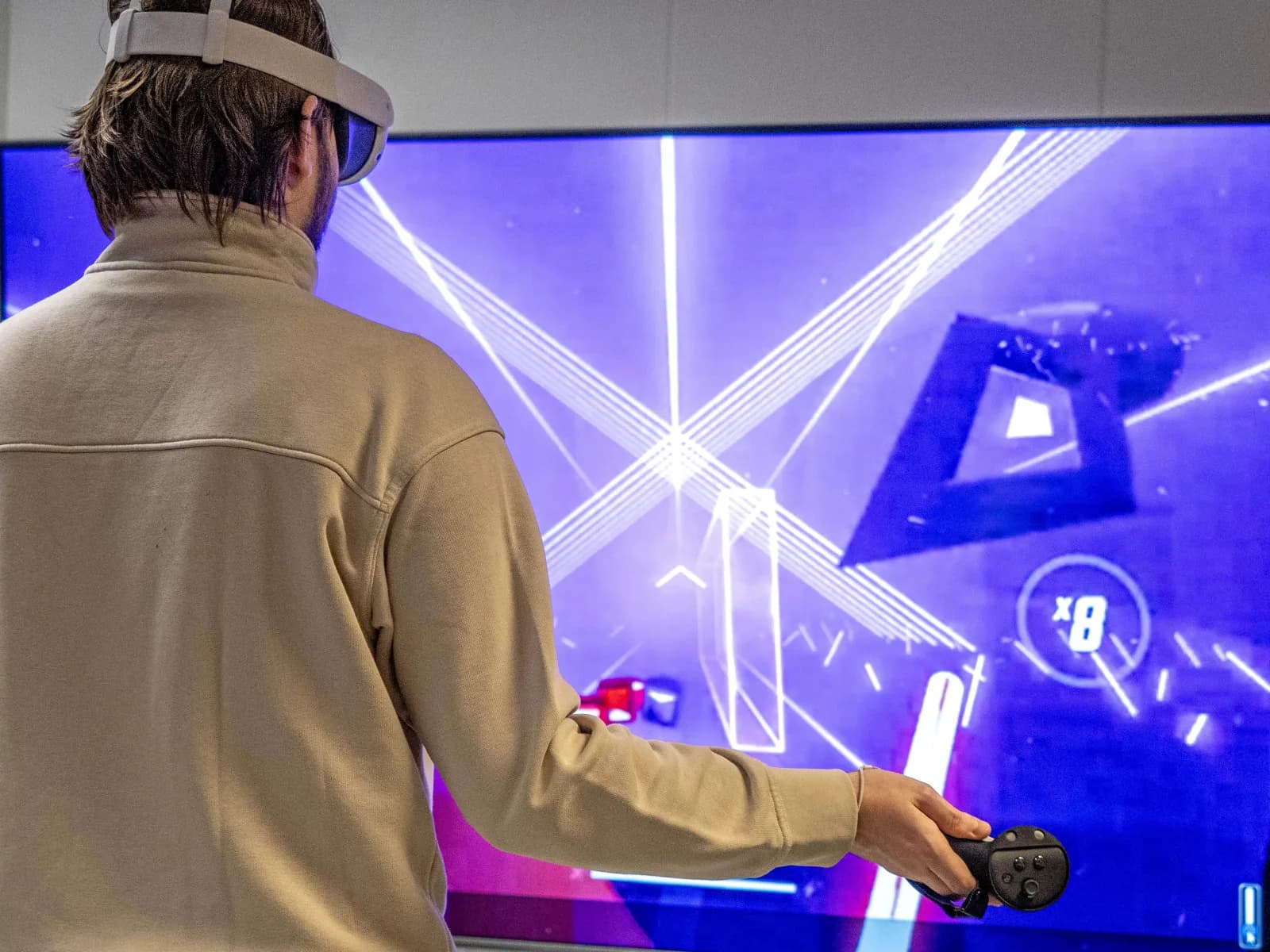
One honest caveat: this advice is for flat screens. Inside a VR headset the picture wraps your vision, and the useful trick runs the other way: comfort modes narrow what you can see while you move. One peer reviewed study found that subtly shrinking the visible area during movement reduced VR sickness, and most players did not even notice it happening. If your problem is a headset rather than a monitor, start with VR motion sickness instead.
Does turning off motion blur help motion sickness?
For many people, yes, and depth of field is worth turning off at the same time. Motion blur exists to make low frame rates look filmic. During a fast turn it smears every pixel, which is precisely when your visual system is hunting for a stable point to anchor on. Take the anchor away and the queasiness climbs. Turning it off costs nothing: the game looks crisper in motion, and competitive players disable it anyway for visibility.
Depth of field does the same damage more politely. It blurs whatever the game decides you are not focused on, but a game cannot know where your eyes actually are. When your gaze lands on a soft background that refuses to come into focus, your visual system reads it as something wrong with your own eyes. Off.
Head bob and camera shake
Head bob rocks the camera up and down to simulate footsteps. When you walk in real life your view genuinely does bob, but your inner ear feels every one of those real steps, so the two signals agree. In a game the camera bobs while your head sits still. That is the mismatch in its purest form, delivered several times a second for as long as you keep walking.
Camera shake is the same idea in bursts: recoil, explosions, heavy landings, a boss slamming the ground. A little goes a long way, and most games pile it on. Turn it off, or drag the slider close to zero. The game will still tell you an explosion happened. It just stops grabbing your eyes to do it.
Frame rate and why smoothness matters
A stable frame rate gives your eyes motion they can track. Stutter turns a smooth camera pan into a series of small jumps, and each jump is a tiny surprise your visual system has to absorb. That is why a rock-steady 60 frames per second usually feels better than a rate that spikes to 120 and dips to 40.
The practical version: lower the graphics preset until the frame rate stops dipping, cap it at a value your machine can hold, and on console pick performance mode over quality mode. Prettier pixels are not worth a churning stomach.
Monitor distance, lighting and the room around you
The screen is only part of your visual field, and you control how much of it. Sit a little further back and the motion occupies a smaller slice of your vision, which shrinks the conflict. This is also why the same game can feel fine on a distant TV and brutal on an ultrawide two feet from your face.
Keep a light on. In a dark room the screen becomes the only thing your eyes can reference, so its motion becomes your whole visual world. A lamp behind the monitor gives your peripheral vision a stationary room to hold onto. Keep the air cool and fresh too, warm stuffy rooms lower everyone's nausea threshold. And take real breaks: short, regular sessions build tolerance better than one long grind.
Where to find these settings in your game
Each game guide lists where its comfort settings live and what to set them to. Start with yours:
- Field of view: Sea of Thieves, Subnautica, Borderlands, Minecraft, Cyberpunk 2077, Dying Light 2, PEAK, Indiana Jones and the Great Circle, and 121 more in the game guides.
- Motion blur: Cyberpunk 2077, Dying Light 2, Indiana Jones and the Great Circle, Half-Life 2, R.E.P.O., Starfield, 007 First Light, 7 Days to Die, and 88 more in the game guides.
- Head bob: Subnautica, Minecraft, Dying Light 2, PEAK, Indiana Jones and the Great Circle, ARK: Survival Ascended, Arma, Avowed, and 17 more in the game guides.
- Camera shake: Dying Light 2, Indiana Jones and the Great Circle, R.E.P.O., 007 First Light, ARK: Survival Ascended, Assassin's Creed Black Flag Resynced, Assassin's Creed Shadows, Assassin's Creed Valhalla, and 62 more in the game guides.
When a game gives you no options
Some games ship without an FOV slider or a head bob toggle. Before giving up, check three places. First the accessibility menu, which is often separate from graphics and increasingly holds the motion settings. Then the config files on PC, where an FOV value frequently exists even when the menu never shows it, a search for the game's name plus "FOV config" usually finds the exact line. Then the modding community, which has patched a wider field of view into games years after the developers moved on.
If none of that works: switch to third-person view where the game offers one, sit further back, shorten your sessions. And accept that a few games never get fixed. The gaming hub has per-game walkthroughs, including which popular games have real fixes and which honestly do not.
When settings are not enough
Settings prevent. They do not rescue. Once nausea has started, no slider brings you back, and some players stay queasy with every option maxed, because susceptibility is partly just how you are built. If you want to know where you stand before blaming a game, the two minute motion sickness test gives you a score.
When it hits mid-session, stop and rest your eyes on something real and stationary for a few minutes, the full protocol is on feel sick right now. And because your headphones are already on, sound therapy fits gaming unusually well: Dizzout plays precisely calibrated audio designed to help calm the response in about 90 seconds. It is one option, not a magic switch, but it is drug-free with no drowsiness, which matters when reaction time is the whole game.
Your headphones are already on
Stop the nausea
Settings prevent the next wave, they don't stop the one already rolling. Dizzout plays precisely calibrated audio through the headphones you game with, one option for calming the response in about 90 seconds. Drug-free, no drowsiness, free to download, with a paid subscription for full access.
Get your personalized Dizzout plan. Paid subscription for full access.
30,000+ travelers in 30+ countries · How we count

On your phone? Scan to start there.
Comparing apps first? See how the motion sickness apps compare
Frequently asked questions
What FOV is best for motion sickness?
There is no single magic number, but many people who feel sick at console-style defaults do better between 90 and 105 on a desktop monitor. Raise it until fast turns stop feeling like the world is whipping past, and back off if the stretched edges start to bother you. The right value depends on your screen size and how close you sit, so treat it as a dial, not a rule.
Is a higher or lower FOV better for motion sickness?
Higher, on a flat screen. A narrow FOV magnifies motion, so every turn sweeps the scene across the screen faster than your eyes expect, and raising it calms that sweep. VR headsets are the exception: their comfort modes narrow the view while you move.
Does turning off motion blur help motion sickness?
For many people, yes. Motion blur smears the screen during exactly the movements that trigger symptoms, which removes the stable visual anchors your eyes need. Turning it off costs nothing in gameplay, so it should be one of the first settings you disable.
Why do first person games make me sick but third person games don't?
In first person the camera is your eyes, so every bob, shake and turn is motion your body never feels. In third person your character sits in the middle of the screen as a steady reference point, and the camera usually moves more smoothly and less often. That on-screen anchor gives your visual system something stable to hold onto, which keeps the sensory conflict smaller.
Does a higher frame rate reduce motion sickness?
A steadier one helps more than a higher one. Stutter breaks camera movement into jarring little jumps, so a stable frame rate is easier on your visual system than a high but fluctuating one. Lower your settings or cap the frame rate until it holds steady, and on console pick performance mode over quality mode.
What if a game has no FOV slider?
Check the accessibility menu first, since motion options often live there rather than under graphics. On PC, the config files frequently contain an FOV value the menu never shows, and community mods have added sliders to many games. If nothing works, sit further from the screen, take shorter sessions, and use third-person view where the game offers it.
Someone you know gets motion sick?
Send them this guide. It might be the trip it saves.
Your next question, probably
Which games have real fixes and which don't?
Per-game settings walkthroughs
Not your question? Is it the game or the screen itself?Does VR follow the same rules?Feeling sick right now?
About this article
- Motion sickness. MedlinePlus Genetics, National Library of Medicine
- Motion Sickness. CDC Yellow Book, Centers for Disease Control and Prevention
- Fernandes AS, Feiner SK. Combating VR sickness through subtle dynamic field-of-view modification. IEEE Symposium on 3D User Interfaces, 2016
This article is informational and not a substitute for medical advice. Product and company names are trademarks of their respective owners; Dizzout is not affiliated with or endorsed by them.